01
Before you start
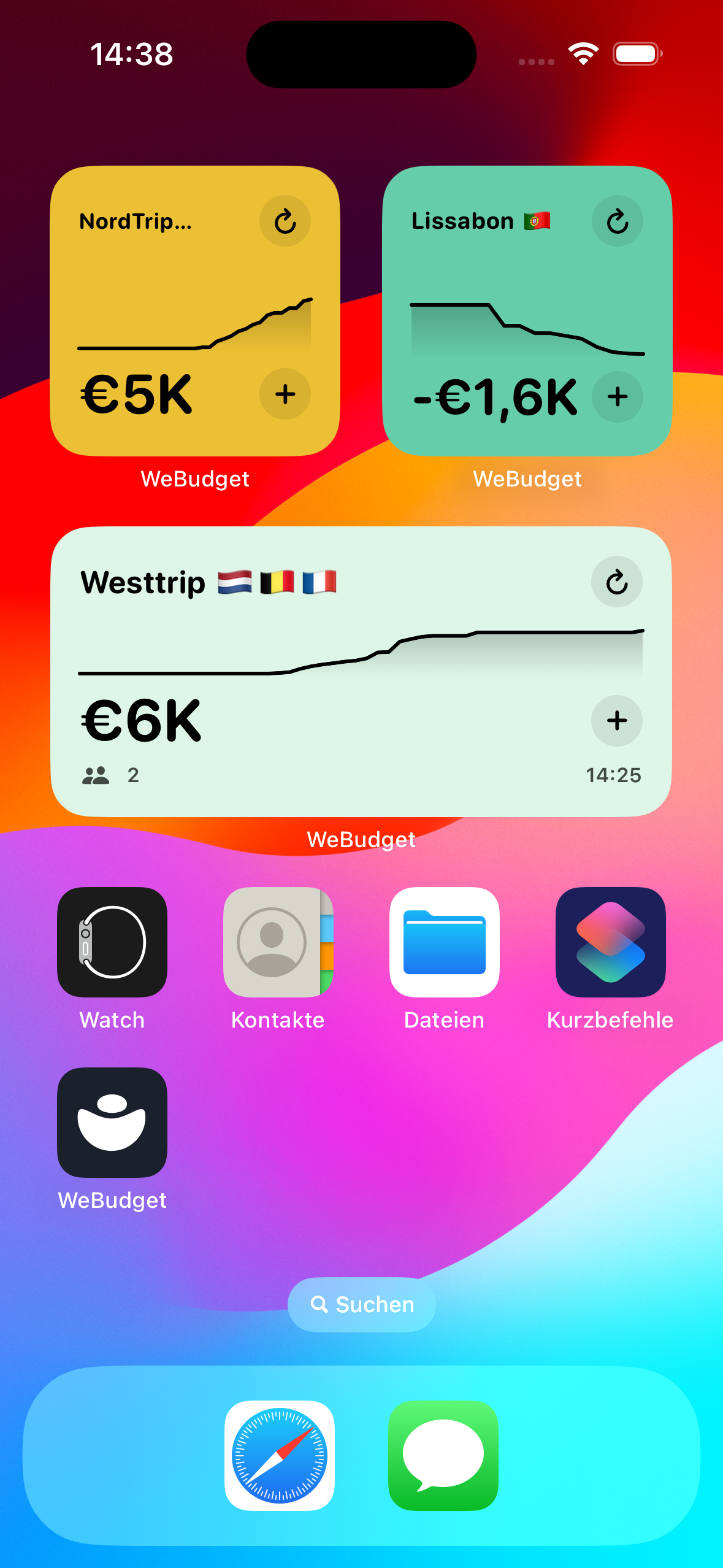
Install the latest WeBudget version, sign in, and open your budget list once. Create a budget or join one first if your list is empty. Each widget shows one budget; add several widgets to follow different budgets.
02 · iOS 17+
Add a widget on iPhone
- Touch and hold an empty area of your home screen until the app icons jiggle.
- Tap Edit → Add Widget. On older iOS versions, tap +.
- Search for WeBudget and select the Budget widget.
- Choose the small or medium size, then tap Add Widget. Move it into place and tap Done.
- Touch and hold the widget, tap Edit Widget, and choose the budget you want. Tap outside the widget to finish.
WeBudget widgets require iOS 17 or later. Without an explicit selection, the widget uses your first available budget. The medium size also shows the last successful update time.
System instructions: Apple Support ↗
03 · ANDROID
Add a widget on Android
- Touch and hold an empty area of your home screen and tap Widgets.
- Find WeBudget, then touch and hold WeBudget Budget and drag it onto your home screen. Some launchers list the widget directly without an app group.
- Choose your budget in the setup screen that opens.
- To resize it, touch and hold the widget, then drag its resize handles. Tap outside to finish. Larger sizes show the member count and last successful balance update time.
The widget picker and resizing controls vary by phone and launcher.
System instructions: Android Help ↗
04
Choose a different budget
On iPhone, touch and hold the widget and choose Edit Widget → Budget. On Android, tap the settings icon on the widget and select another budget. Each widget remembers its own selection.
05
Use your widget
The widget follows your budget’s color and shows a balance-history chart when at least two history points are available.
Open a budget
Tap the widget body to open that budget in WeBudget.
Add a transaction
Tap + to open the transaction form for that budget. Save the transaction in the app. The + button is hidden for read-only budgets.
Refresh your balance
Tap the refresh icon to request the latest balance and history without opening the app. A valid sign-in session and an internet connection are required.
06
Questions & troubleshooting
Why can’t I find WeBudget in the widget picker?
Update WeBudget, open the app, sign in, and load your budget list. On iPhone, check that you have iOS 17 or later. If the widget is still missing, restart your phone and try the picker again.
Why is my widget empty or showing the wrong budget?
Open WeBudget and load your budget list. Then select the budget again using Edit Widget on iPhone or the settings icon on Android. If you deleted or left the selected budget, choose another one. After signing out, sign back in and select a budget again.
Why hasn’t the balance updated?
Tap refresh or open WeBudget and reload your budget list. Your phone controls background update timing, so updates are not instant. Offline or failed requests keep the last saved balance. If refreshing still fails, open the app and sign in again if asked.
Why is the chart or + button missing?
The history chart needs at least two history points. The + button appears only for budgets you can edit.
Can I display more than one budget?
Yes. Add another WeBudget widget and choose a different budget for it. On iPhone, choose small or medium; on Android, resize each widget to fit your home screen.
Still need help?
Email your app version, phone model, and what happened so we can help.
Contact support →